
Invite Guests
To invite a guest, click the “Invite Guest” button at the top right corner of the screen.

The second way to invite Guests (individuals who are not members of your household) to the property page, hover your mouse over your name on the top right side of the screen. When the drop down bar appears, hover over the property and click “Guests”.
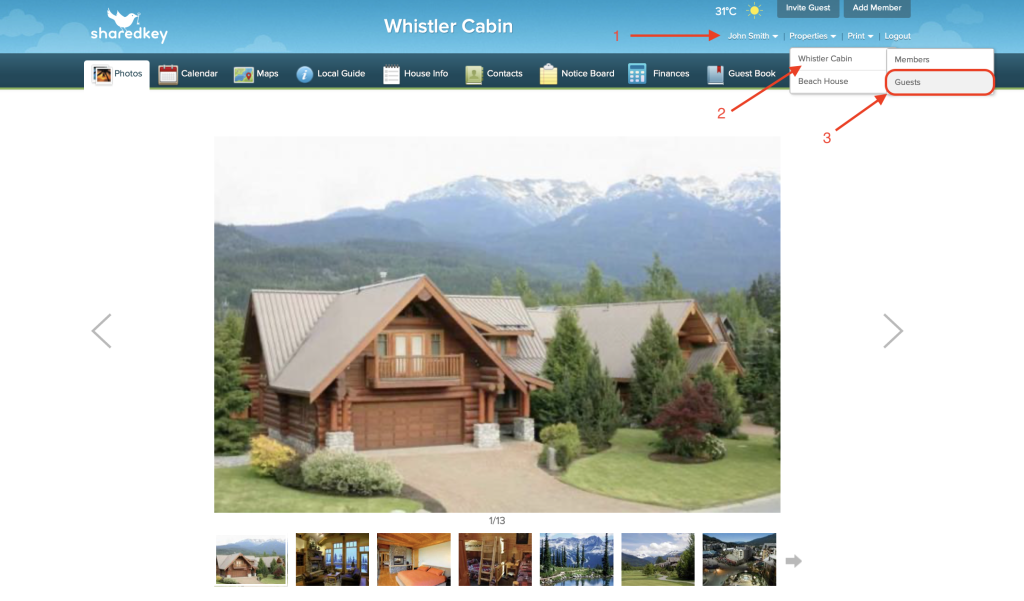
To invite a Guest, click the green “Invite Guest” button.

Fill out the following information for the guest you would like to invite.
Enter the name and email of the Guest.
Select arrival and departure dates for the Guest
Enter a title for the subject/event of their visit, and if you like you may add a personalized message.

You may send an invite more than one Guest at a time by clicking the green plus button next to “Add another Guest”. There is no limit to how many guests you can add at any one time. This is ideal if you are having a larger event with multiple Guests at once.
In the Calendar page, the Guests will be able to see their event only (i.e. they cannot view any other bookings). They will have “view only” access to the other pages (excluding Notice Board and Finances), but they will have full ability to add entries to the Guest Book.
Once your invite is sent, your guests will receive the following email.

When your Guest clicks the green “Login” button, this is how your Guest will be able to log in and access the property page.