Help  Members Change Property Administrator
Change Property Administrator
The only difference between the Administrator and a Full Access Member is the payment of the annual subscription (please refer to the Member Access Rights table below).

There are a couple different cases where you may want to change the Administrator function.
CASE 1: You want to swap roles with someone in your member group.
- Go to billing and subscription.
- Cancel subscription.
- This will end automatic payments for yourself.
- You then have to wait for the property to expire.
- Then, the other member, once logged in, will be presented with the button to reactivate, and will be able to add the billing profile on their account.


CASE 2: Sold property or you are no longer involved.
Option A:
If the person you would like to make property Administrator is already a Member of any sort, the first step is to delete them as a member of that property, because you cannot have both the Administrator and a Full Access Member using the same email / username.
To do so, login at sharedkey.com, go to your profile name, select ‘Properties’ from the dropdown menu and then for each property, go to ‘Members’ and delete that member from the properties.


The second step is to change your profile details. To do this, click on your profile name and select ‘My Profile’ from the dropdown menu.
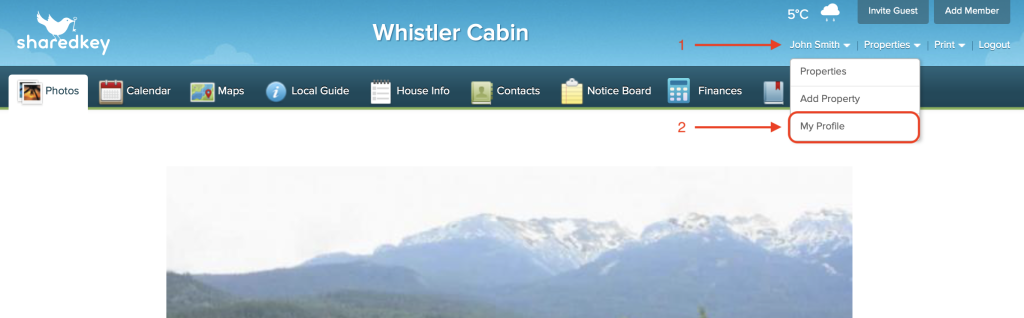
In the Edit Profile page, you will be able to change all of the relevant details to be the new Administrator’s name, telephone number, email address / username, and a password for them to login into (and presumably change afterwards). See screenshots below.

You then can remove your credit card payment method for automatic renewals by going to Subscription in the Billing & Subscription page and click on ‘Cancel Subscription’.


This will have the effect of removing your automatic renewal payment method from the account. Please note: the account will remain active until the expiry date. Once the new Administrator logs in, they then can go to Billing in the Billing & Subscription page for each property and update those property accounts with their credit card details to activate the next renewal.
Option B:
Login at sharedkey.com, go to your profile name, select ‘Properties’ from the dropdown menu, and then select and confirm ‘Remove Property’. Your credit card payment profile for these accounts will be automatically cancelled and you will not be charged again. You will retain your email address / username for SharedKey but you will no longer will have any properties associated with your account until you add a property, you are added to be a member, or invited as a guest.
-> Removing a property from your account

-> Reactivating an account by a Full Access Member
